Getting started
From install to a working RAG stack
Activate your license and you are ready: the installer has already registered its AI models for every new user, so chat and knowledge bases work without any model setup. Steps 2 and 3 are optional — they route models through the built-in API gateway, for when you want one place to manage channels, tokens and usage.
- Admin ▸ License
- Buy → pay
- Auto-activates
- Sovnex API ▸ console
- Add Ollama channel
- Create a token
- Settings ▸ Providers
- Add Sovnex API
- Use in Chat / RAG
Activate your license
Every deployment ships unactivated. You activate it once from the admin console. When you buy from the admin side, activation is automatic — you never copy a code by hand.
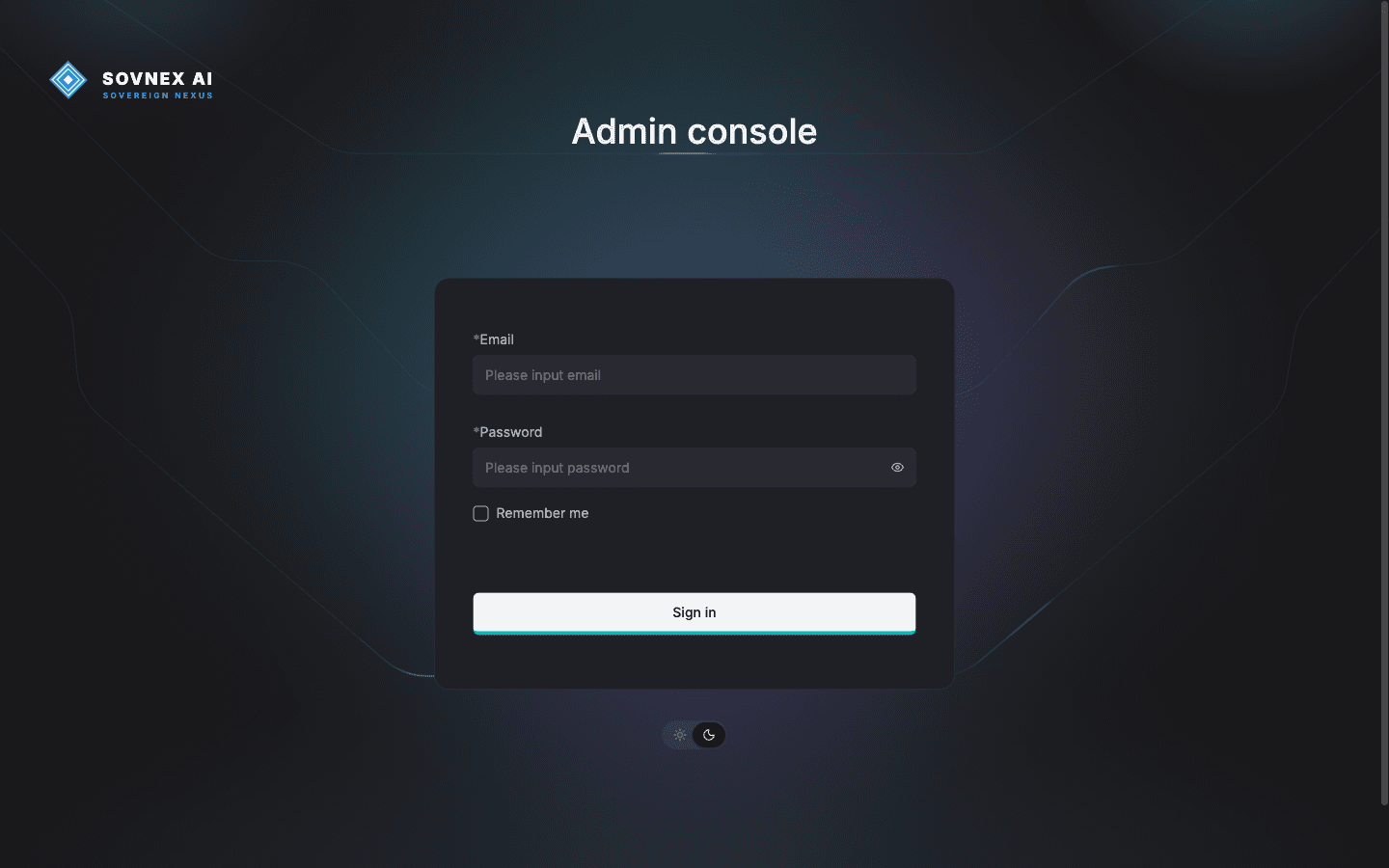
Sign in to the admin console
Open http://<your-host>/admin and sign in with admin@sovnex.io and the password the installer printed at the end (also in .env as DEFAULT_SUPERUSER_PASSWORD).
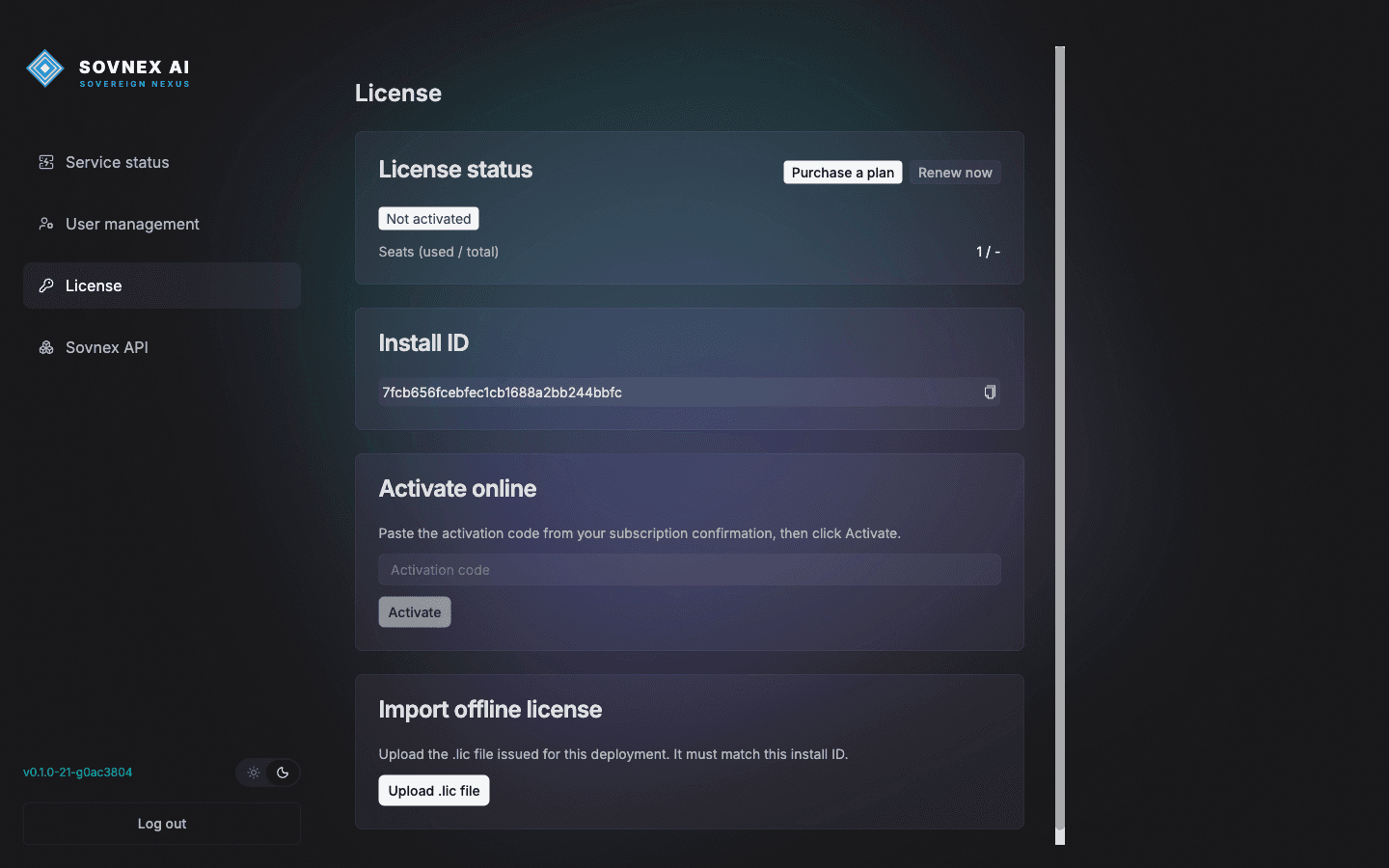
Open License — it reads "Not activated"
The License page shows the deployment status and a unique Install ID. Click "Purchase a plan": it carries this Install ID into checkout so the license binds to this exact deployment.
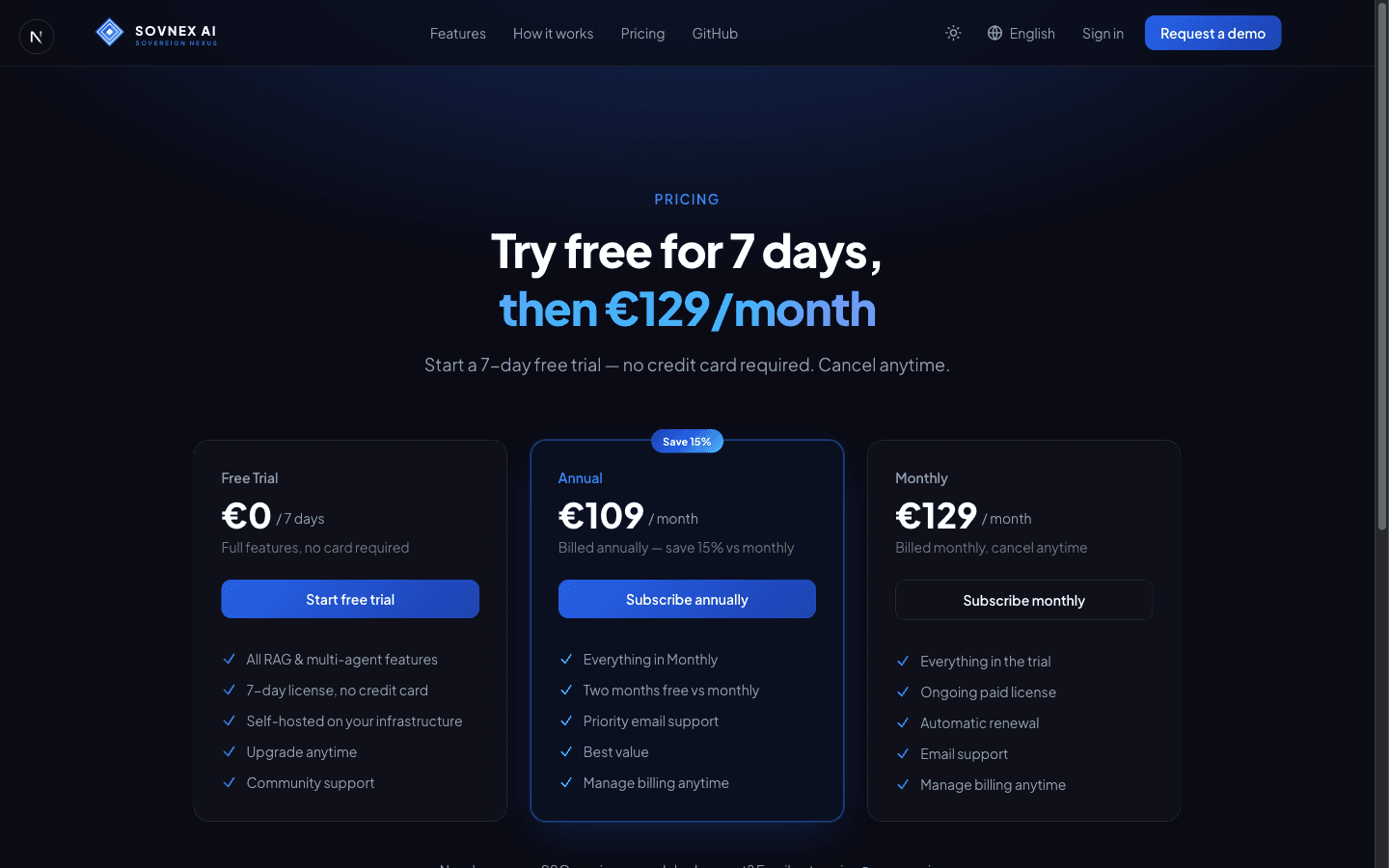
Choose a plan
The pricing page opens in your browser. Pick a plan — 7-day free trial, Monthly, or Annual. Your Install ID travels along in the link.
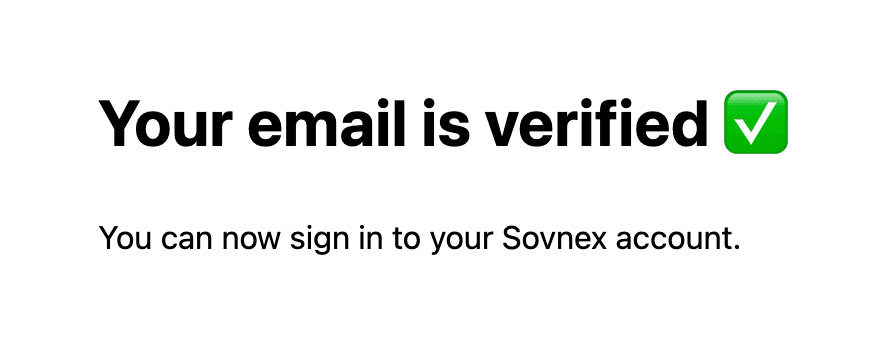
Register and verify your email
Create a portal account and confirm the verification email. You can then sign in to complete the purchase.
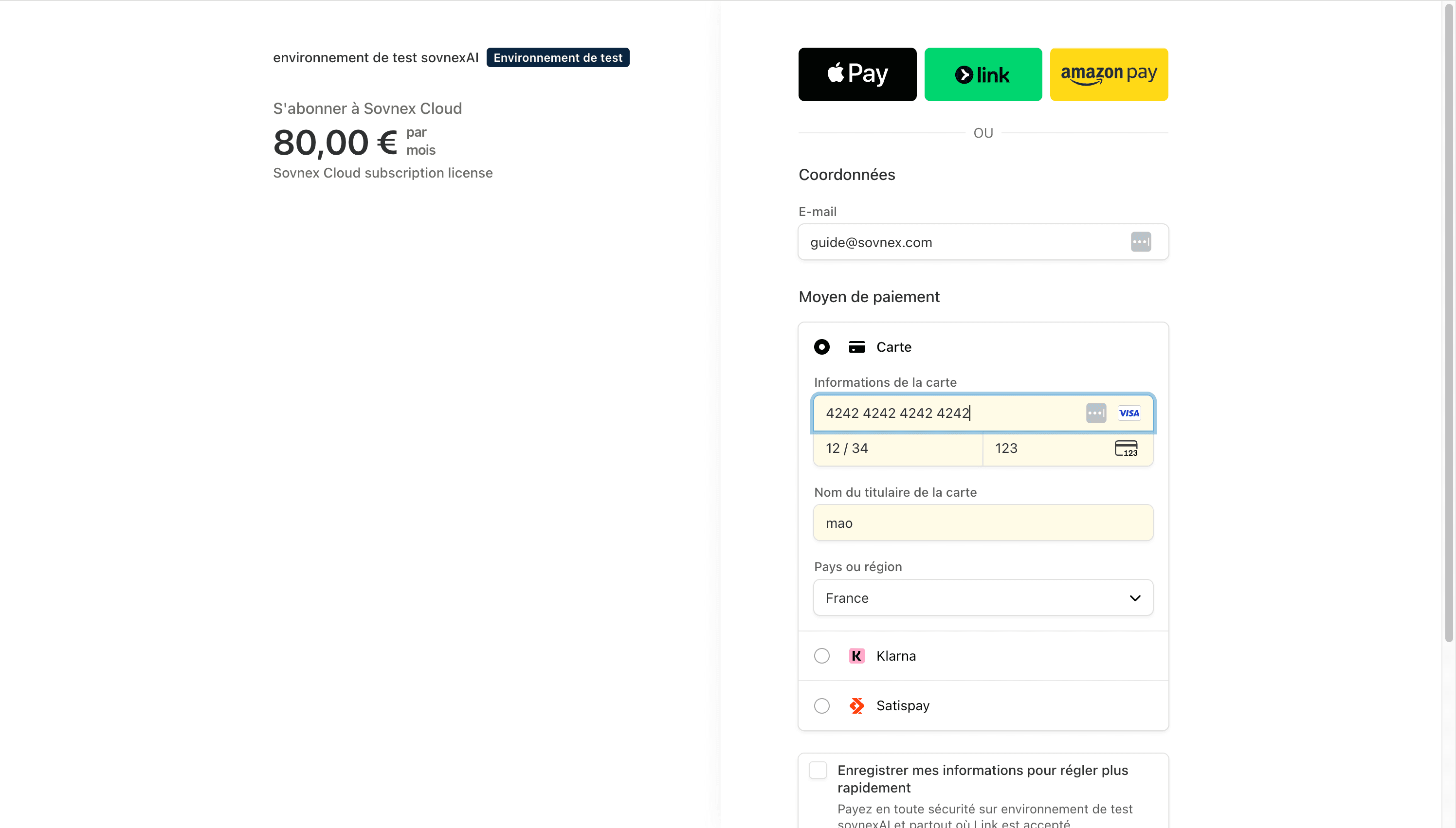
Pay with your card
Complete Stripe checkout. Testing the flow? Stripe test mode accepts the card 4242 4242 4242 4242 with any future expiry and any CVC.
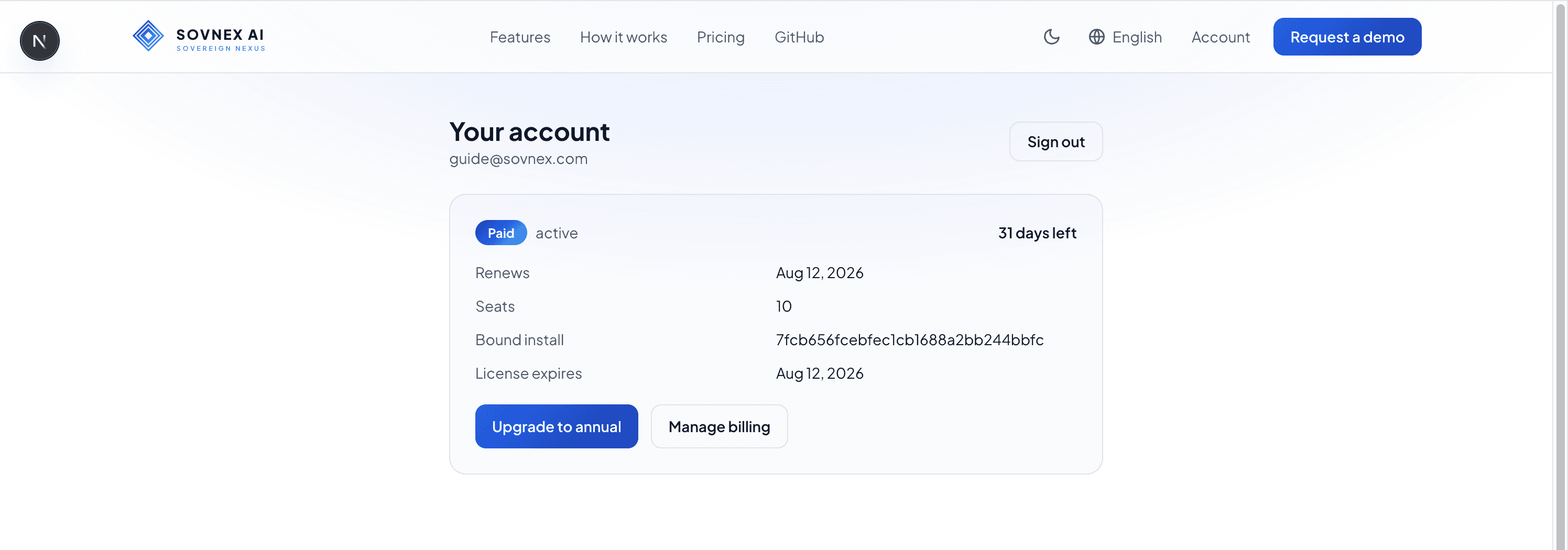
Subscription becomes active
Your portal account now shows Paid · active, the seat count, and the Bound install (your Install ID).
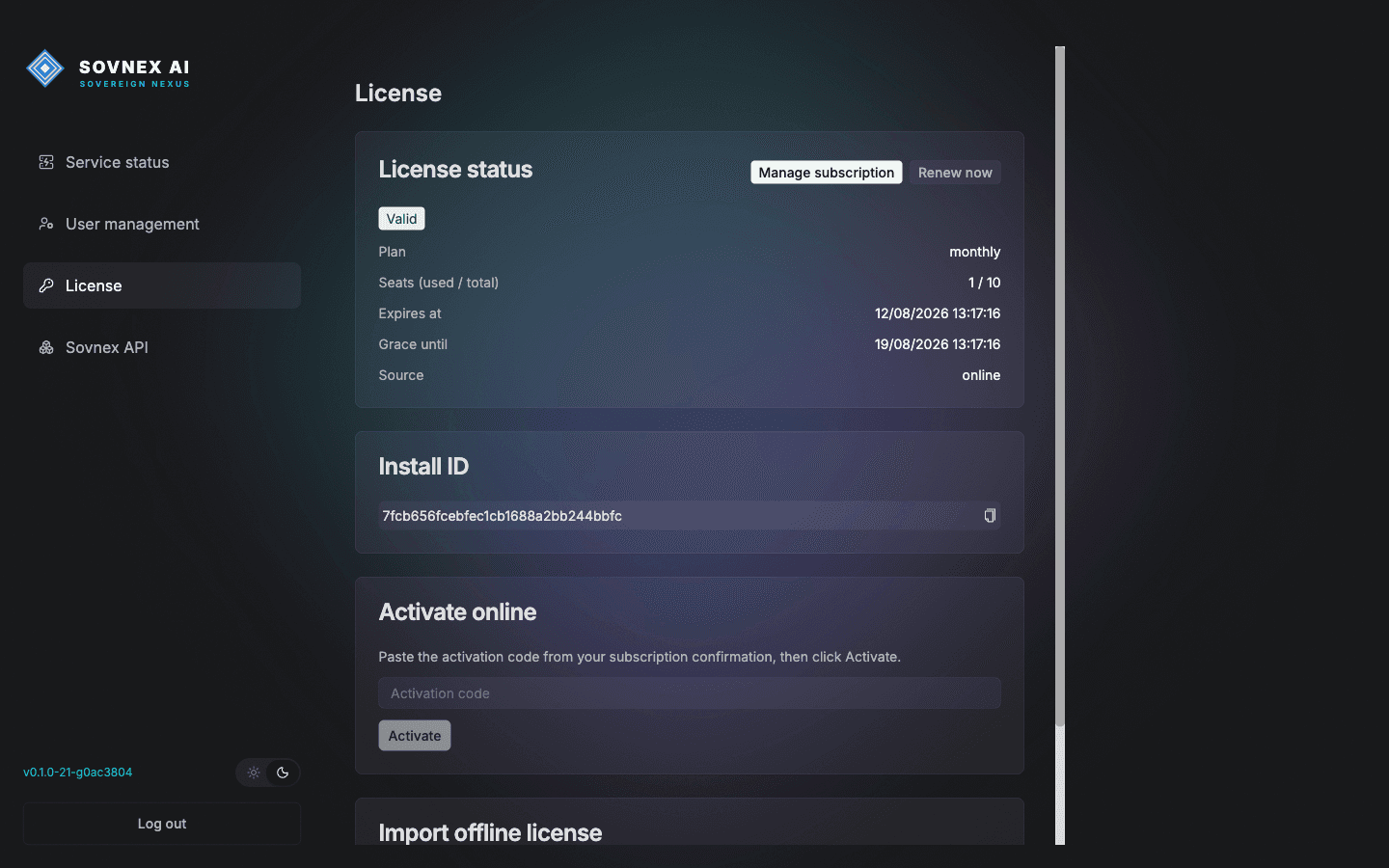
Your deployment activates automatically
Back on the admin License page, the status flips to Valid within about 30 seconds — plan, seats and expiry all appear. Nothing to copy.
Optional: connect the API gateway to your local models
You do not need this to chat — the models the installer registered already work for every user. Sovnex also ships a built-in, OpenAI-compatible API gateway: point it at your local Ollama once, and every user's requests route through it — no per-user endpoints to manage.
Open the gateway console
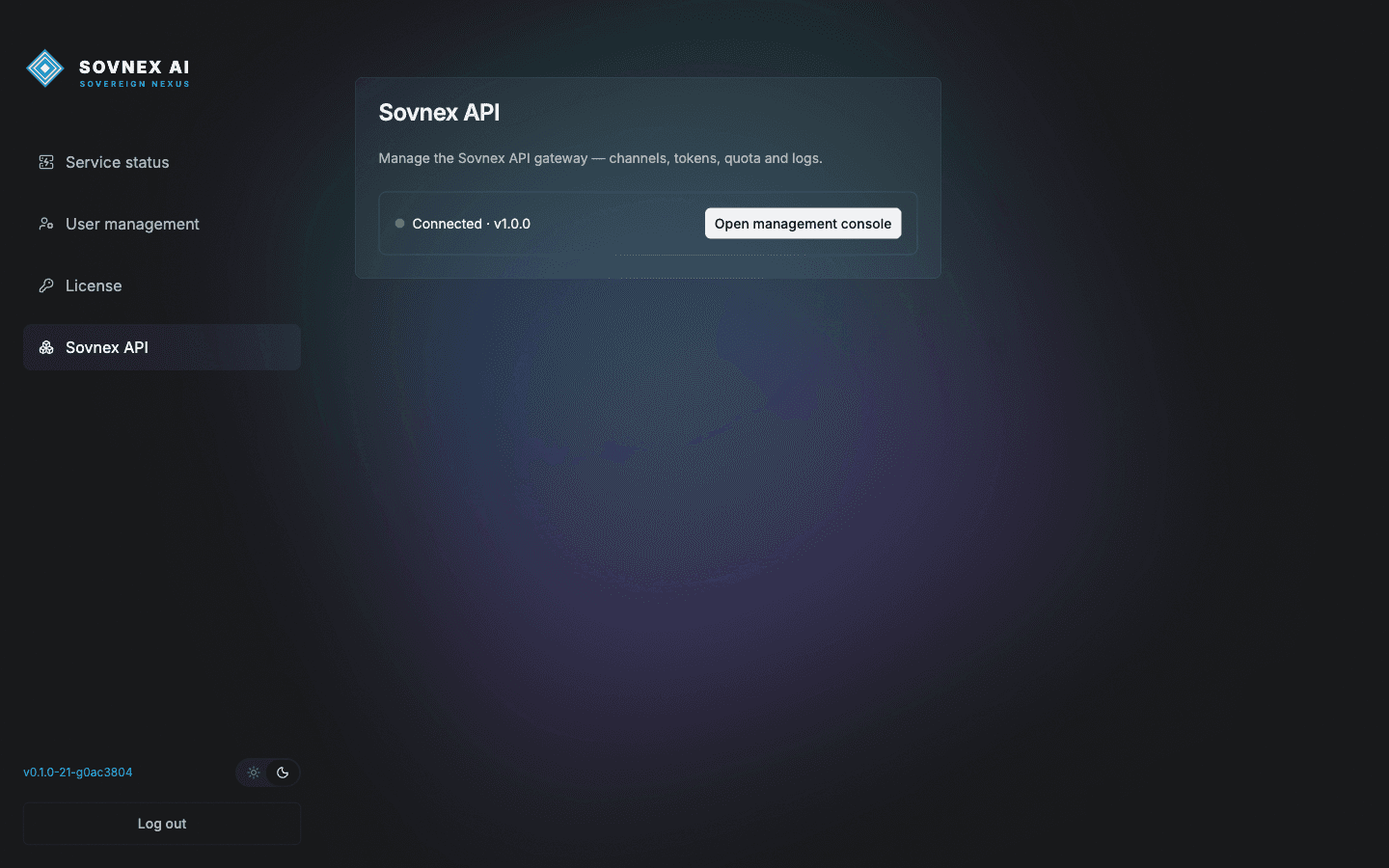
In the admin console, open Sovnex API. A green "Connected" status means the gateway is healthy. Click "Open management console" — it signs you in automatically in a new tab.
Add an Ollama channel
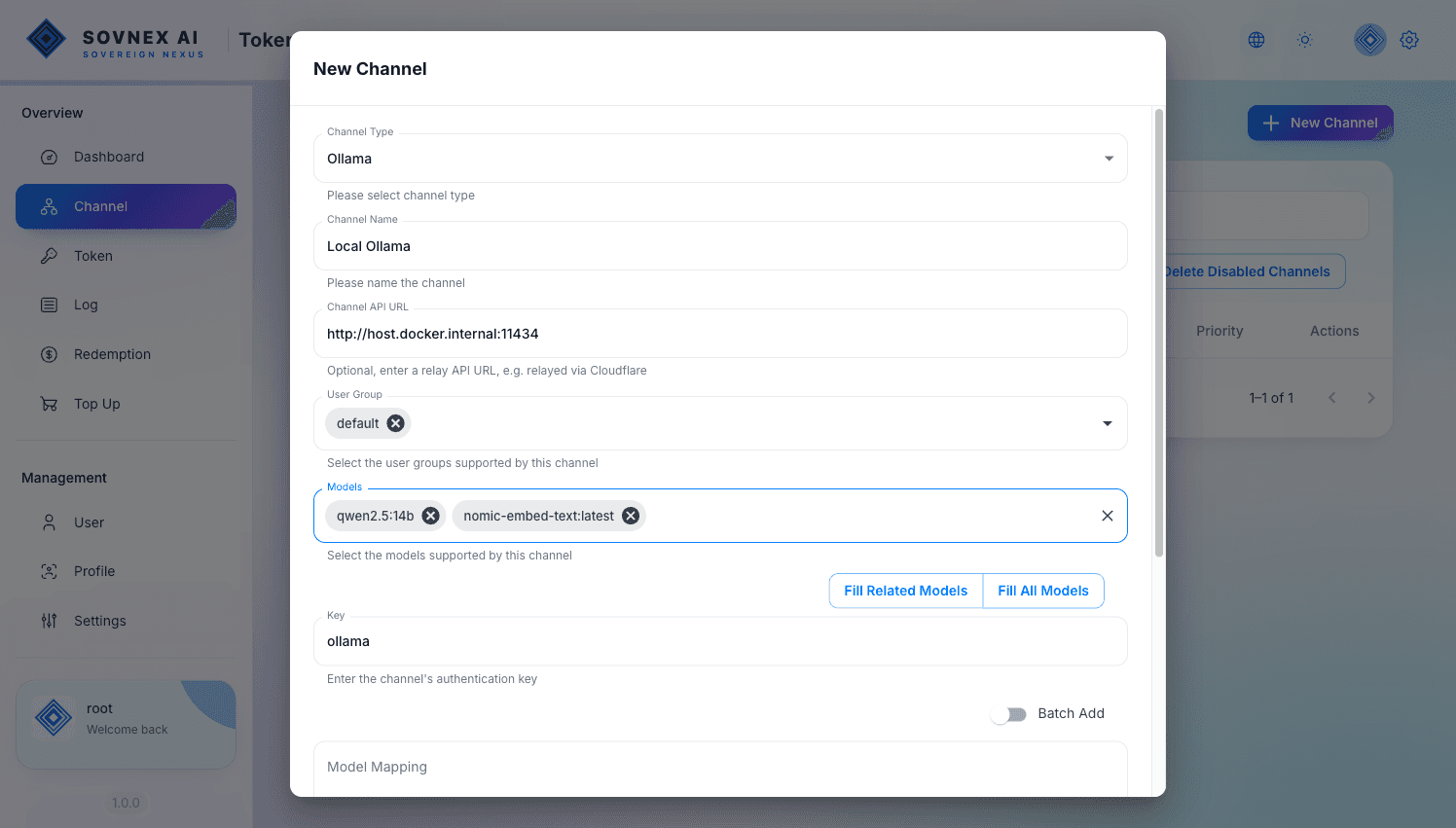
In the console go to Channel → New Channel and set Type = Ollama. Base URL is http://ollama:11434 on Linux or http://host.docker.internal:11434 on macOS (Docker Desktop), Key can be any non-empty value (e.g. ollama), and Models must be your real Ollama model names.
Save and verify the channel
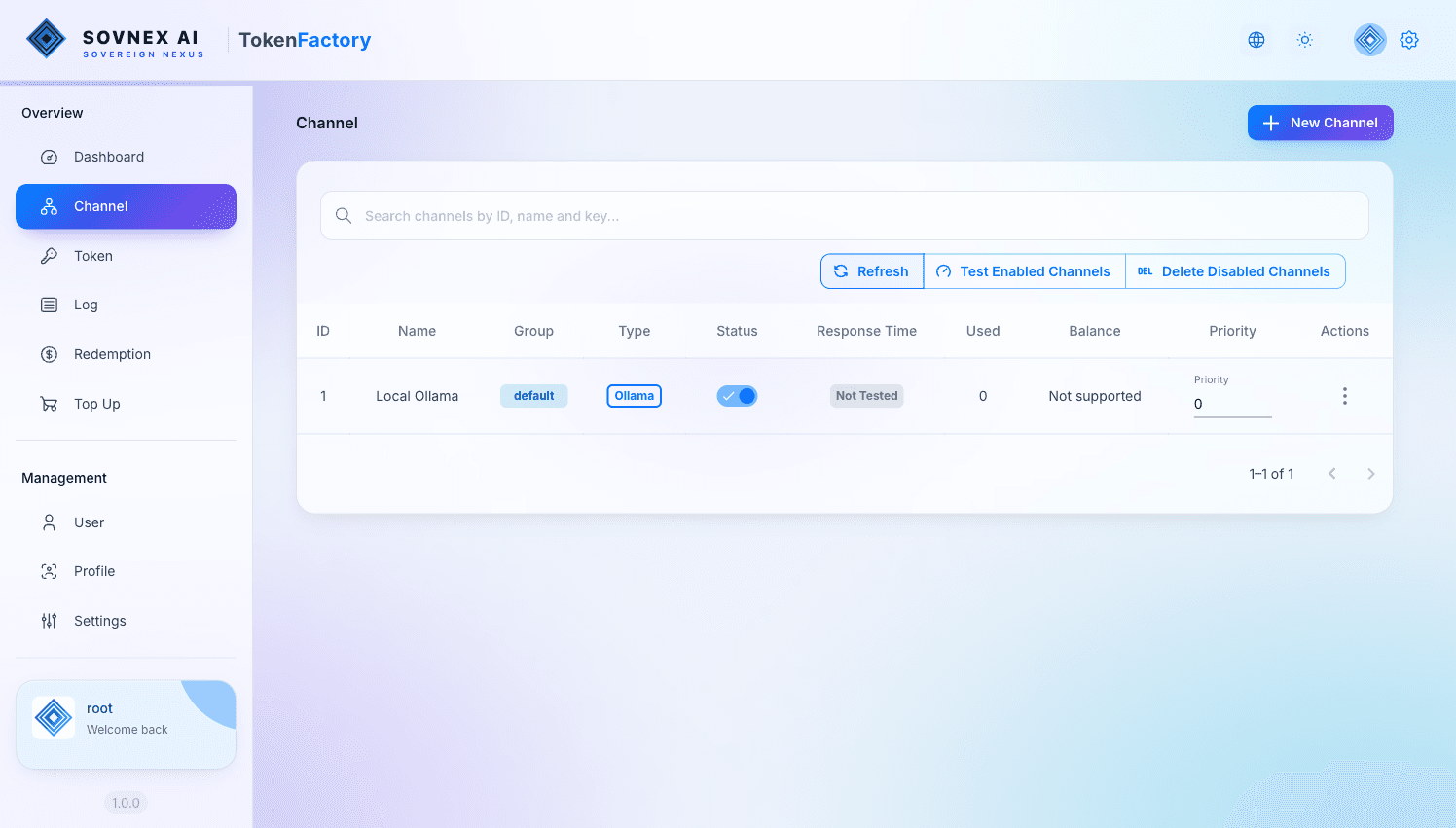
The channel appears as Enabled. Use "Test Enabled Channels" to confirm the gateway can reach Ollama and run a model.
Create an API token
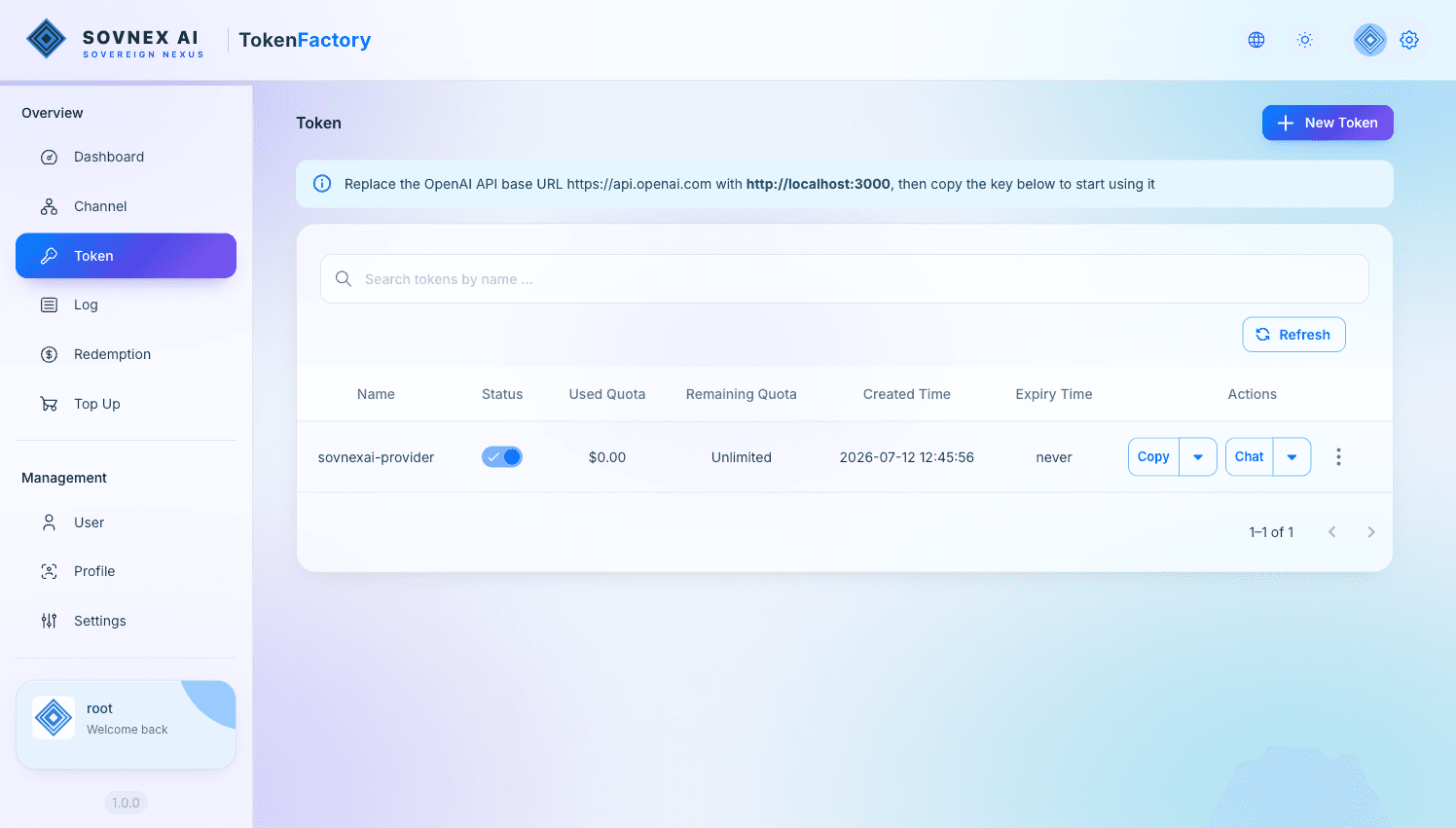
Go to Token and add a token. Its key (starts with sk-) is the API key your sovnexAI users will paste into the model provider in the next section.
Optional: use the gateway's models in the app
Now let a sovnexAI user consume those models through the gateway. "Sovnex API" is a built-in provider, so the base URL is pre-filled for you — using the gateway as the example here.
Open Model providers
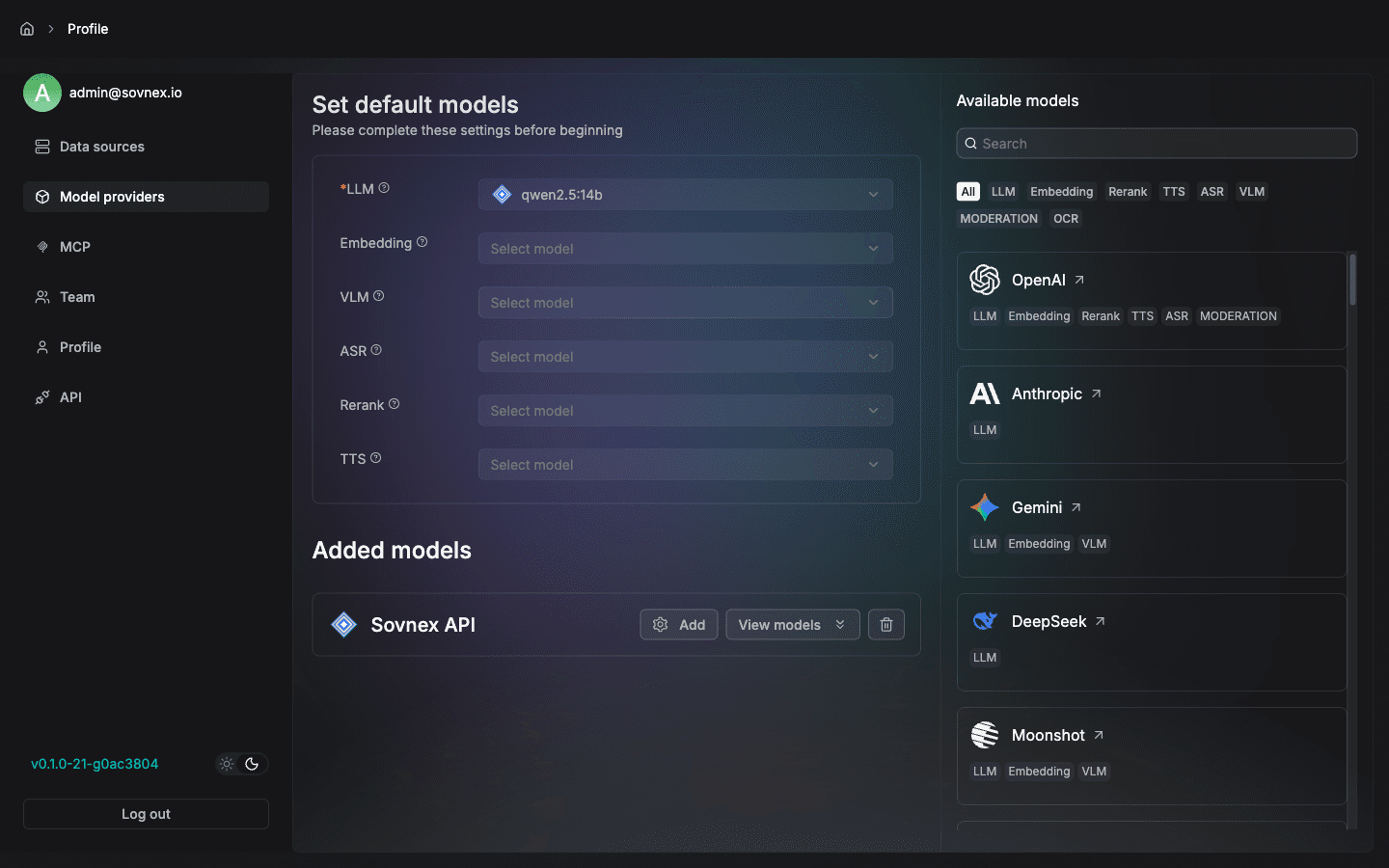
Sign in to the app as a user, then open Settings → Model providers. The models the installer registered are already under "Added models", with the default LLM and Embedding set — nothing to do unless you want them to go through the gateway. "Sovnex API" sits at the top of the provider list.
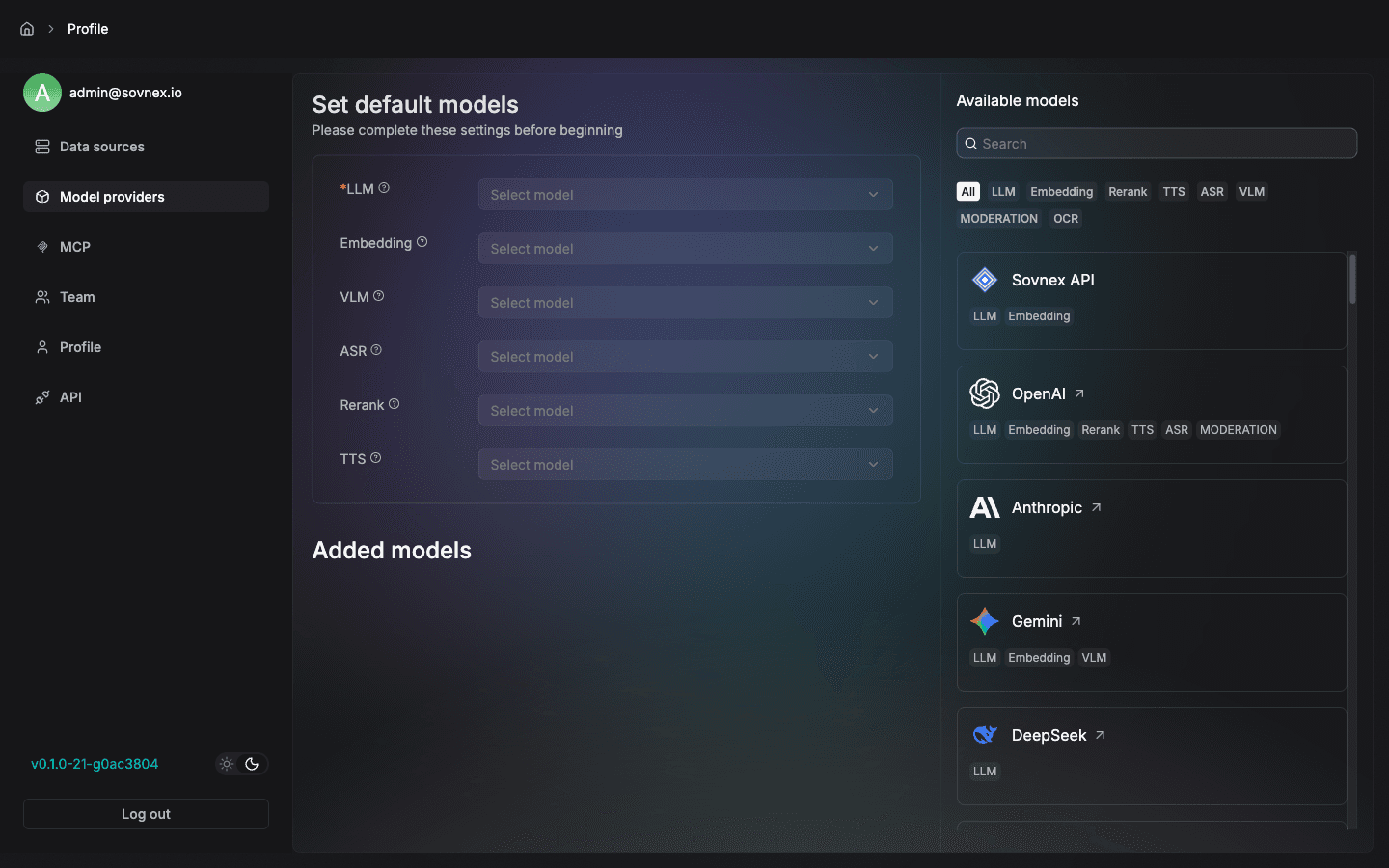
Add a model through the gateway
Click Sovnex API → Add. Choose model type Chat, enter the model name exactly as in the gateway (qwen2.5:7b), and paste the gateway token (sk-…) as the API-Key. Set Max tokens to the context window the model server really runs with: 8192 for the installer's Ollama models, 32768 for its vLLM chat model. Too small and retrieved content is silently dropped; too large and prompts get cut off.
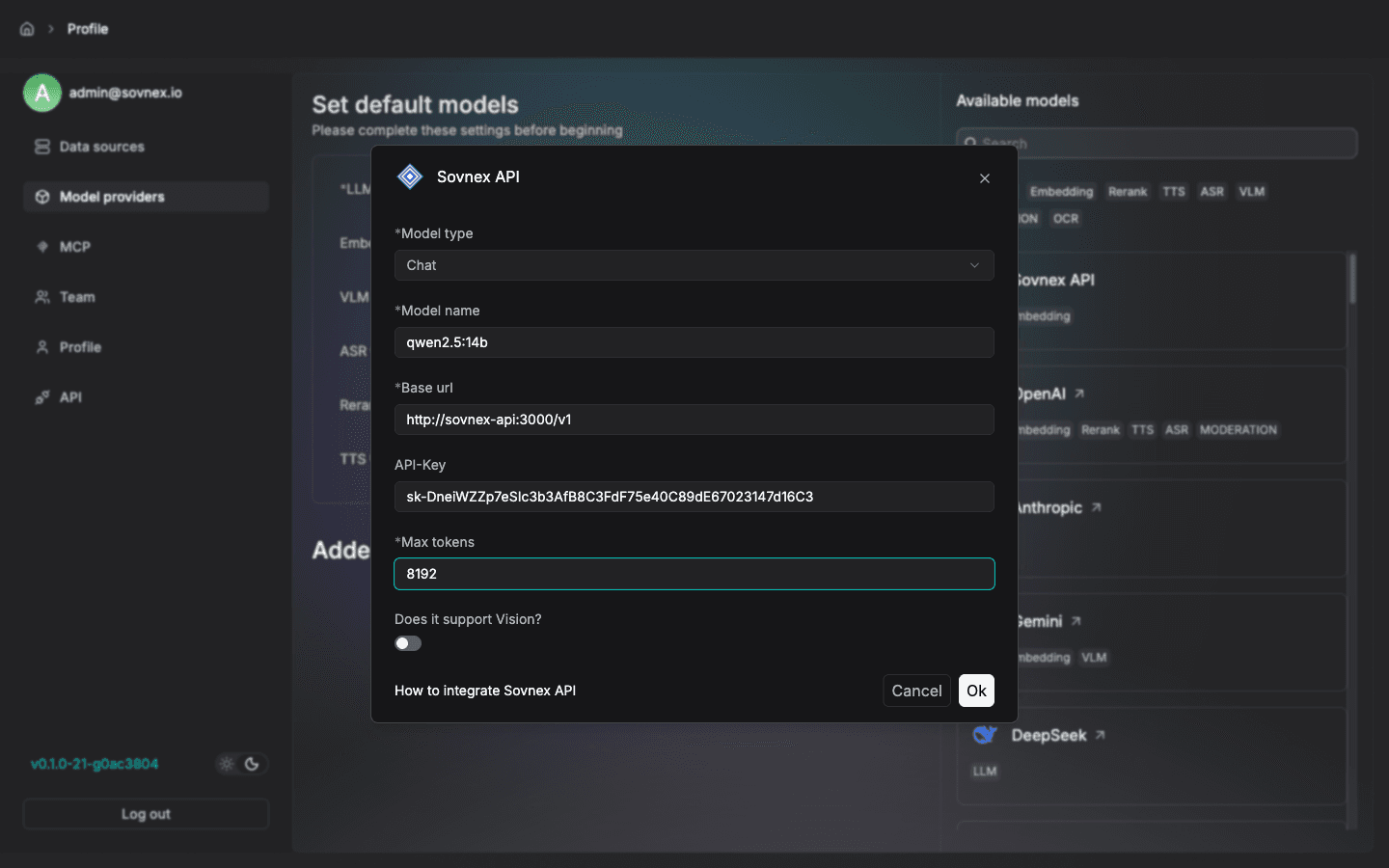
Set it as default and start using it
The model now appears under "Added models". To route chat through the gateway, pick it as the default LLM in place of the one the installer registered directly. Embedding needs nothing: the installer already registered bge-m3 — add it through Sovnex API too only if you want embeddings to go through the gateway as well. It is now available across Chat, Search and Agents.